
A shortcut that feels like yours.
Search for a supported action and assign your own key combination. Insert a text box, add a chart or reach a favourite formatting command.
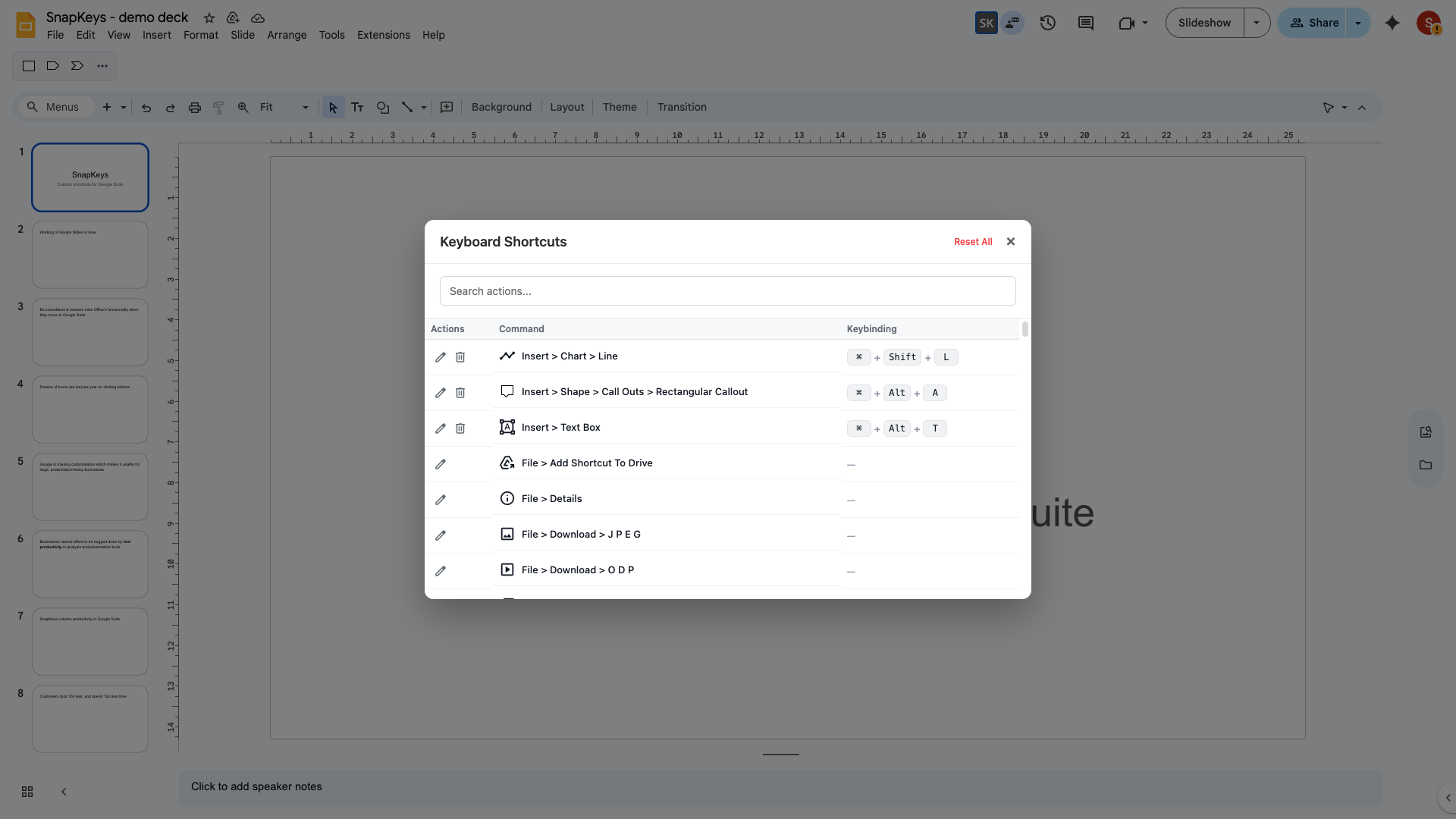
Custom shortcuts for Docs, Sheets and Slides.
Extra tools for better slide layouts.
Free for personal Gmail accounts.
Chrome extension · Docs, Sheets & Slides
Run everyday actions with your own keys or toolbar buttons.
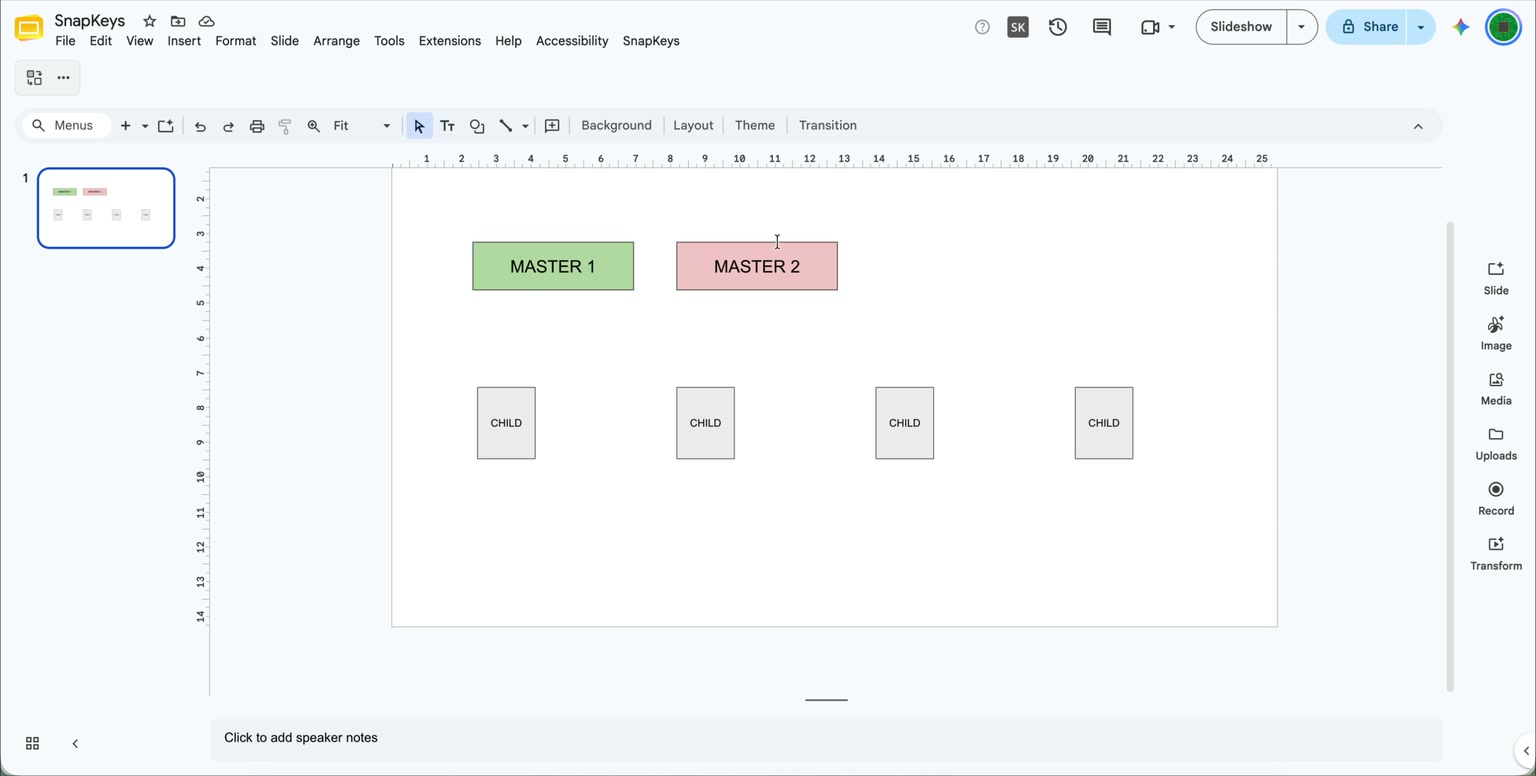
This recording shows a few examples from the Slides power tools collection: Swap Objects exchanges two positions. Match Size matches width and height to a reference. Stack Vertically closes vertical gaps. Stack Horizontally closes horizontal gaps. SnapKeys also provides custom keyboard shortcuts and a personal toolbar across Google Docs, Sheets and Slides.
Google Slides add-on
Chrome extension · Docs, Sheets & Slides
Run everyday actions with your own keys or toolbar buttons.
Slides add-on · Google Slides
Align, resize and arrange objects with 30 extra tools.
Use them together: run Slides tools from your own shortcuts.
Chrome extension · Docs, Sheets & Slides
Stop hunting through menus. Give the actions you use most a shortcut, a toolbar button, or both.
Search for a supported action and assign your own key combination. Insert a text box, add a chart or reach a favourite formatting command.
Keep your go-to actions in a personal Quick Access Ribbon inside the editor. Choose the buttons, change their order and click to run.
Google Slides add-on
Tidy up a layout with purpose-built commands. These are a few favourites from the Slides power tools collection.
Line up selected objects with the edge or centre of your reference object.
See how it worksGive selected objects the same width, height or both as your reference.
See how it worksExchange two objects’ positions without dragging them into place.
See how it worksPlace objects flush against a chosen side of your reference object.
See how it worksClose horizontal or vertical gaps while keeping the existing visual order.
See how it worksExtend an object to a reference edge, or grow it across the gap until it touches the reference.
See how it worksUse the add-on menu in Slides, or connect both parts of SnapKeys to run these tools from your own shortcuts and toolbar buttons.
Get started
The extension and Slides add-on are installed separately. Use the same Google account for both.
Chrome extension · Docs, Sheets & Slides
Install and pin the extension. Sign in with the email you use in your Google editor.
Open or refresh Docs, Sheets or Slides to see the SnapKeys controls.
Find an action, assign a shortcut or add it to your ribbon, then give it a try.
 Add to Chrome
Already installed? Open the SnapKeys popup to sign in or manage your plan.
Companion add-on · Google Slides
Choose the Google account you use in Slides, then install SnapKeys from the Google Workspace Marketplace.
After installation, refresh Slides and look for the SnapKeys menu.
Select your objects and choose a command. Add your own shortcut through the extension.
Included for personal Gmail accounts, Max and Enterprise. Compare plans.
Simple plans
Sign in with your @gmail.com account for unlimited shortcuts, ribbon buttons and Slides power tools. No paid plan is needed.
Slides power tools need the companion add-on.
Add to ChromeThese plans are for non-Gmail accounts. Personal @gmail.com accounts already include Slides power tools for free.
For non-Gmail accounts
A few favourites, always within reach.
$0/month
No subscription required
Slides power tools require Max or Enterprise for non-Gmail accounts.
For non-Gmail accounts
More shortcuts for the way you work.
US$4.99/month
Billed monthly
Slides power tools require Max or Enterprise for non-Gmail accounts.
For non-Gmail accounts
For people who spend their day in Slides.
US$9.99/month
Billed monthly
Companion Slides add-on required.
Enterprise includes Max capabilities with organization-wide licensing and billing.
The Chrome extension lets you assign custom shortcuts and build a personal Quick Access Ribbon in Google Docs, Sheets and Slides. The companion Slides add-on adds editing tools such as Match Size, Swap, Dock and Stack. You can run these tools from the add-on menu or through the extension.
No. The Slides power tools are ready-made commands. Install the add-on, select your objects and choose a command. To use a keyboard shortcut or toolbar button, assign the command in the SnapKeys extension.
The extension alone gives you shortcuts and toolbar buttons for supported actions in Docs, Sheets and Slides. Install the companion add-on when you want the extra Slides tools. Use both to run those tools from your own shortcuts and toolbar.
Accounts using a personal @gmail.com address get unlimited shortcuts, unlimited Quick Access Ribbon buttons and access to Slides power tools for free. The Slides tools still require the companion add-on. Other accounts can start free with 10 custom shortcuts and 5 ribbon buttons.
Install SnapKeys from the Google Workspace Marketplace using the same Google account you use in Slides. Sign in to SnapKeys with that email address, then refresh your presentation and open Extensions → SnapKeys. Slides power tools are included for personal Gmail accounts, Max and Enterprise.
Install the extension and sign in, then open the SnapKeys popup to choose Pro or Max and your billing period. Pro includes unlimited shortcuts and ribbon buttons. Max adds Slides power tools, which require the companion add-on. You can manage your subscription from the extension.
Put your favourite actions at your fingertips, and bring more precision to your next presentation.
Free for personal Gmail accounts. Free starter plan for work accounts.